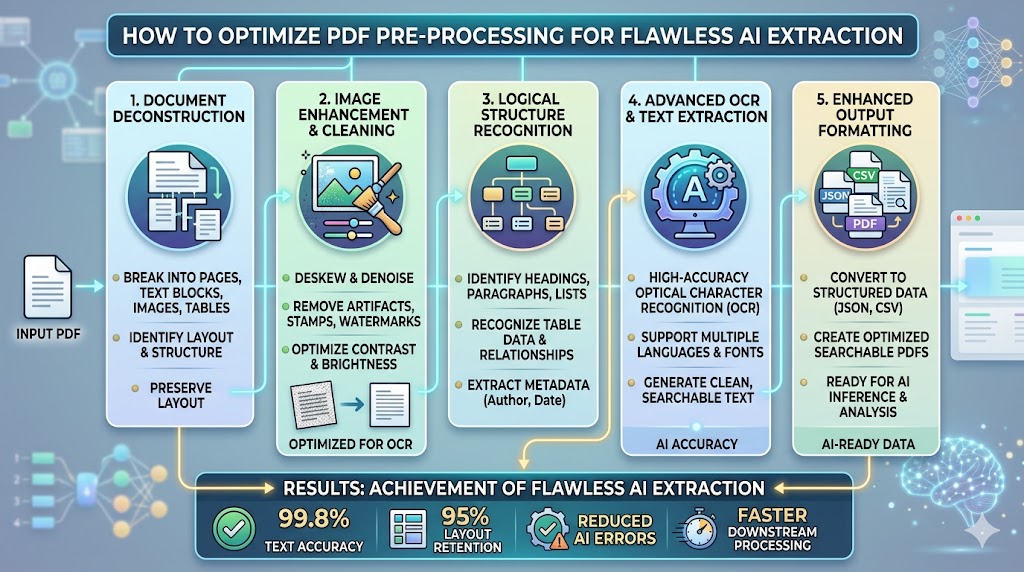
Even the most advanced generative AI models can only reason as well as the text they receive. If your PDF documents are poorly formatted or scanned sideways, parsing results will suffer. Here is how to pre-process your PDF files for optimal results:
### 1. Deskewing and Rotation
Scans that are tilted or sideways disrupt character baseline detection algorithms. Running an automatic deskew pre-processing pass ensures all text is oriented horizontally before starting text extraction.
### 2. Digital PDF vs Scanned PDF (OCR)
Always preserve digital-native PDFs where possible. Accessing character data directly from a digital file provides 100% accurate text extraction. If a scanned file is required, apply adaptive thresholding first to filter visual dust or page shadows.
### 3. Smart Chunk Splitting
Breaking a 100-page document into paragraphs with overlapping context ensures semantic relevance. Maintaining a small block size (e.g. 500-1000 characters) keeps the context concise for rapid vector search retrieval.
Guides & Tutorials
Published
May 15, 2026
How to Optimize PDF Pre-processing for Flawless AI Extraction
Admin User
DocuSense AI Editorial Team